Try it here
A working model of the Trindle desktop, running in this page. Open the ring by double-clicking the corner or the wallpaper, pick an app, and shut it again when you have seen enough.
It behaves the way the real desktop does: the ring holds your favourites, the All apps button in the middle shows the kinds of app, and a strip along the bottom stands in for the open windows, which on the real desktop are tabs along the bottom of the ring.
What this is not
The desktop
Double-click the corner, or anywhere on the wallpaper, to open the ring. On the real desktop the double click goes at the very edge of the screen, or on the empty desktop.
The ring is shut. Double-click the corner or the wallpaper to open it.
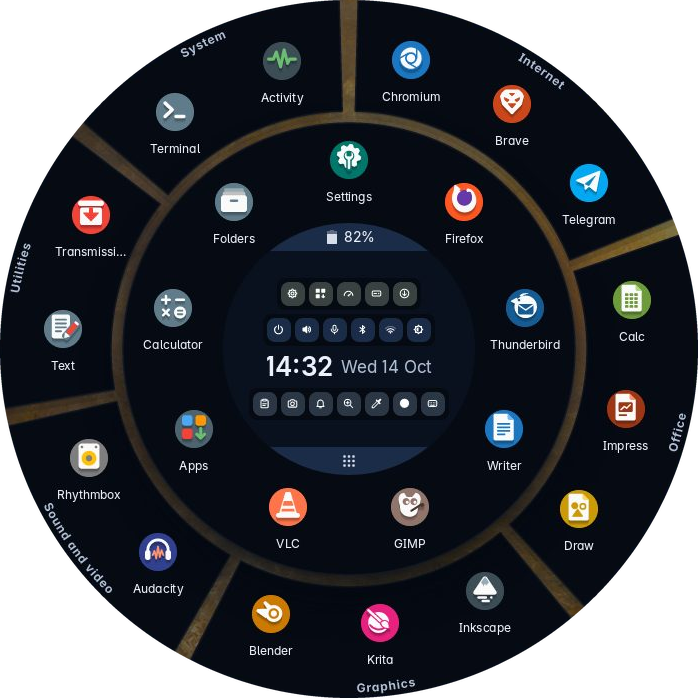
With the keyboard, Tab to the corner and press Enter to open the ring, then Tab or use the arrow keys to move round the icons. On the real desktop the Super key opens the ring. Drag with a finger or the mouse to move an icon round the circle; on this page, holding Shift with an arrow key does it too. Escape shuts the ring. The three marks at the right of the strip stand for the clipboard, keyboard and magnifier buttons, which on the real desktop are in the middle of the ring; they do nothing here.
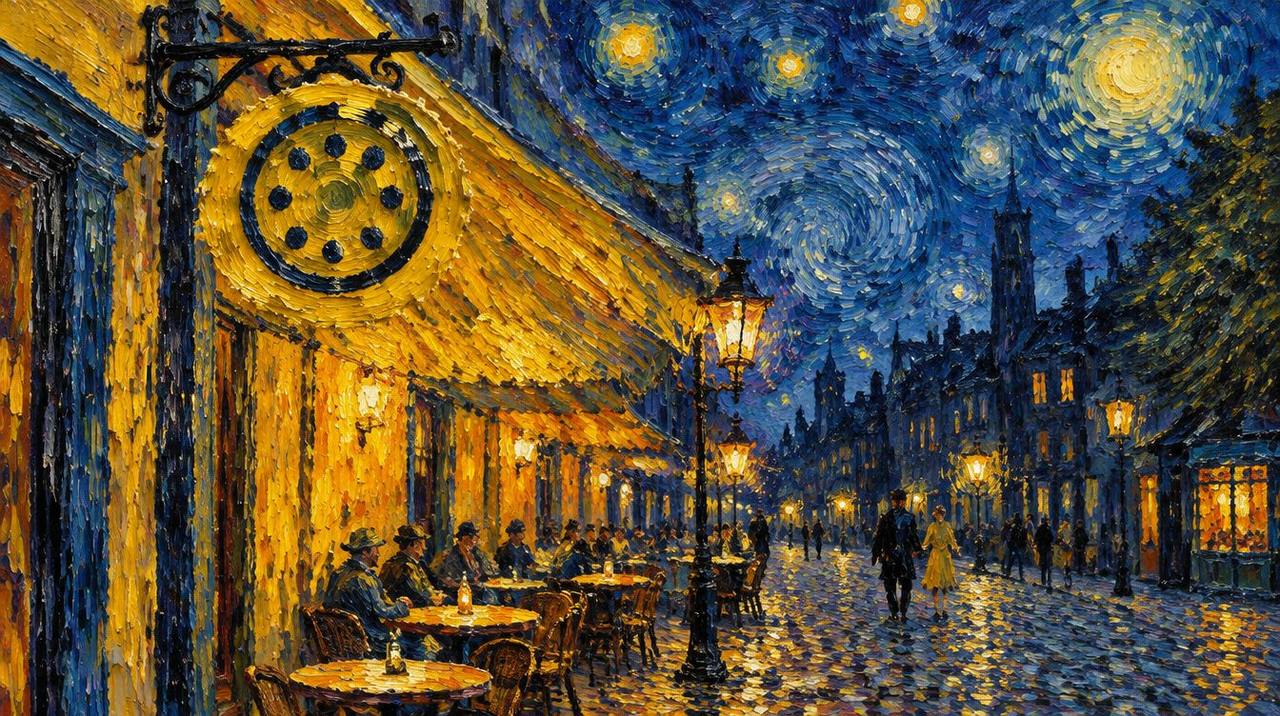
The wallpaper is Café at night, one of the pictures that come with Trindle.
The ring
A double click on the corner opens it, and so does a double click on the wallpaper. Your favourites sit round the circle, the clock and a few buttons sit in the middle, and an icon can be dragged to a new place.
All apps
In this model the button in the middle swaps your favourites for the kinds of app: Internet, Office, Graphics, Sound and video, Games and Utilities. Pick one to see what is in it, and press the button again to go back. On the real desktop every other app appears round the outside, in pieces by kind, and typing a few letters finds an app by name.
Windows and the strip
Four apps here hold a picture of the real thing. The three marks at the top right of a window put it away, fill the screen and close it. The strip along the bottom shows what is open, and says so when nothing is. The apps other than the four with pictures are stand-ins, and say so when opened.